Photo and text to line art
Start with a photo or a text prompt. The line art generator supports both.
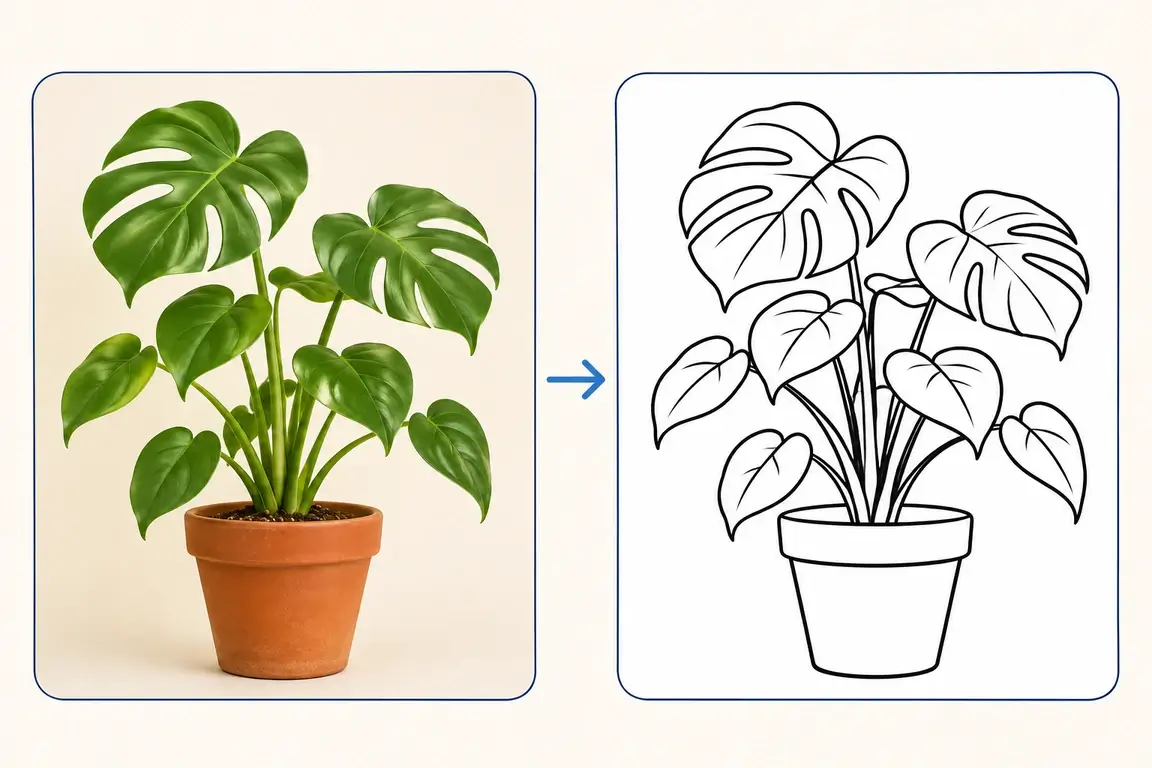
Photo to line art
Use the photo line art generator to turn a pet portrait, an everyday object or a design reference into black-and-white outlines. A clear subject against a simple background works best.
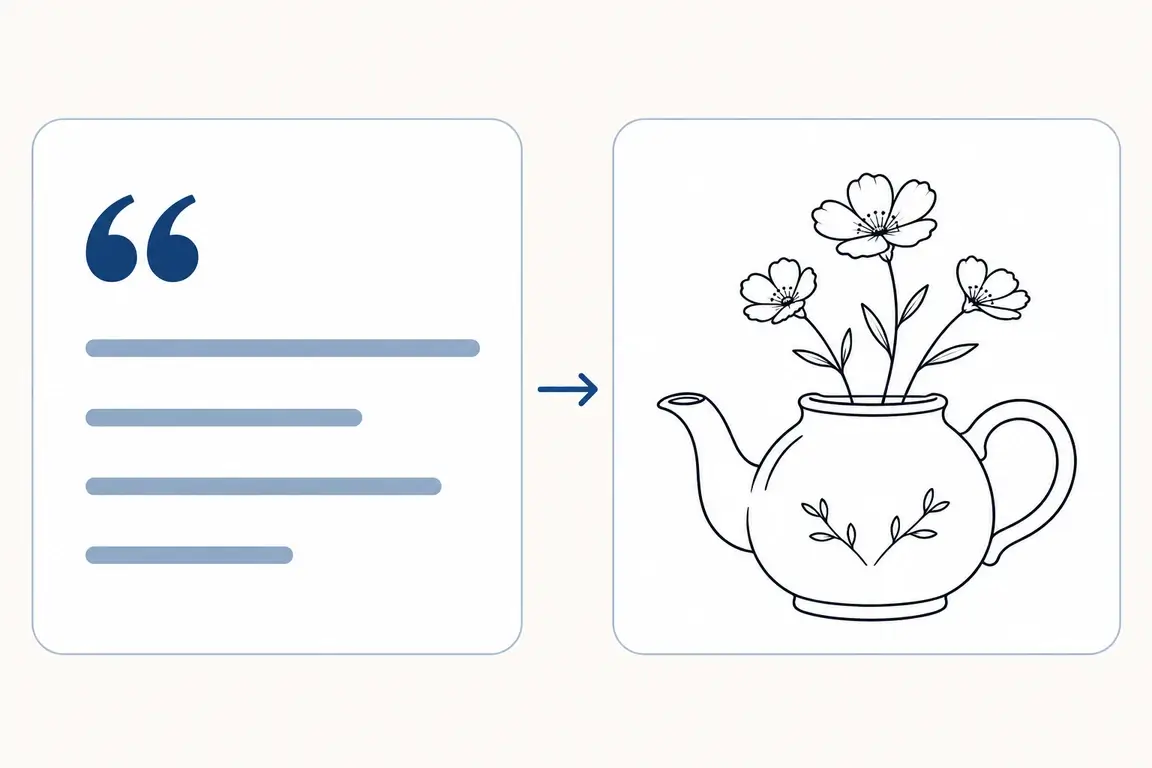
Text to line art
Describe an object, a botanical motif or a small scene. The AI line art generator creates a fresh line drawing from your words.
How the line art generator works
Use the line art generator in three steps: add your subject, choose a style and download a PNG.
-
Upload or describe
Upload a clear photo, or describe what you want to draw.
-
Choose your line style
Choose the line weight and a clean, detailed or coloring-page style.
-
Generate and download
Review the line drawing, then download a PNG to refine or share.
Workflow illustration · A guide to the steps, not an actual tool result.
Who can use it?
Use the line art generator for personal references, creative drafts and everyday activities.
Tattoo artists & clients
Bring a personal visual reference to a consultation, then refine the linework with an artist.
Illustrators & stationery makers
Explore motifs for invitations, journals and early design concepts.
Parents & educators
Make a simple drawing around a subject a child enjoys and prepare a colouring activity.
Small-brand designers
Explore product outlines for packaging, menus and brand moodboards.
Line art examples
Explore four uses for a line art generator, from pet portraits to botanical drawings, colouring pages and product illustrations.
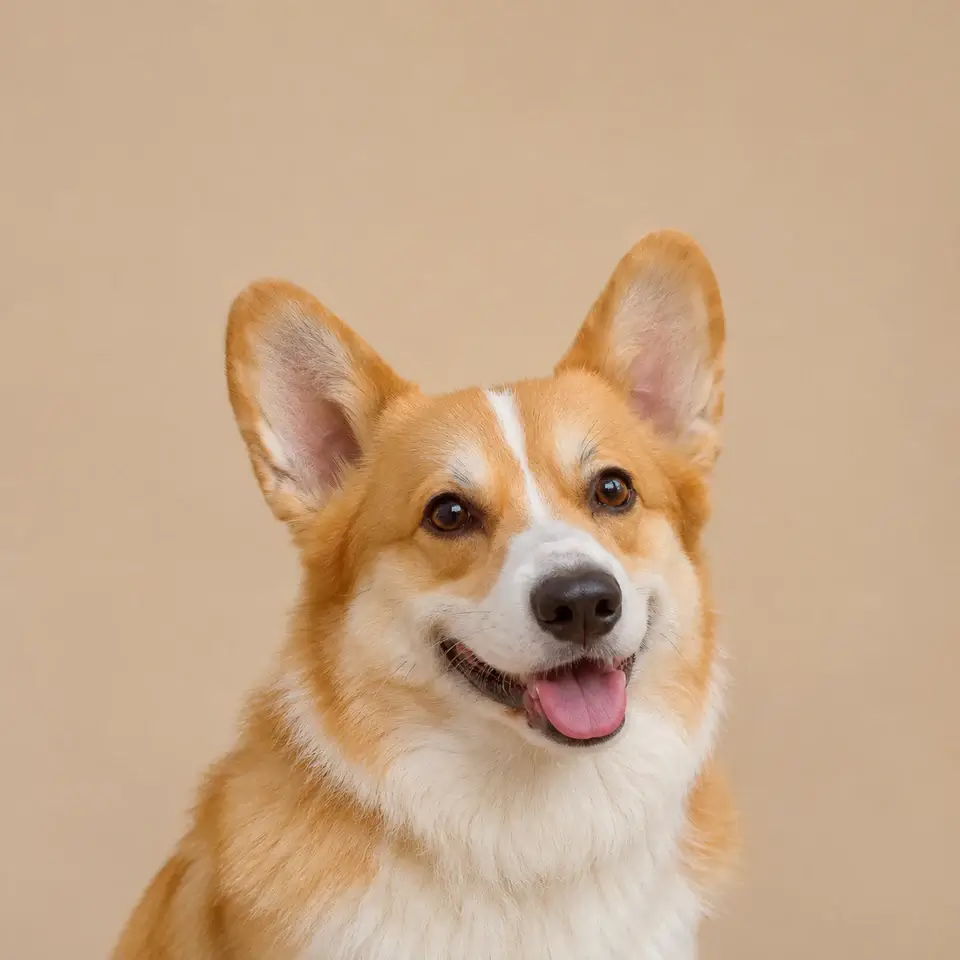
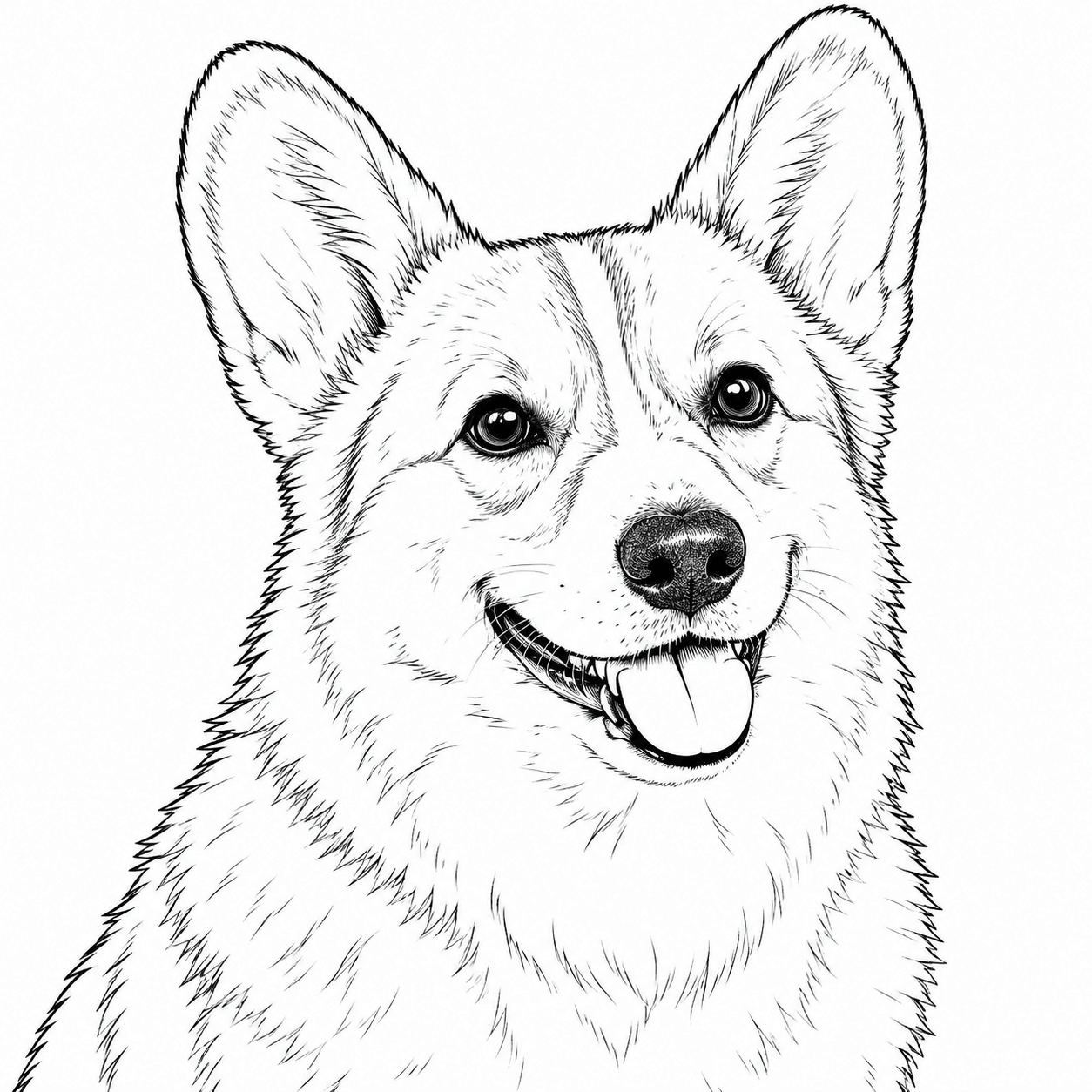
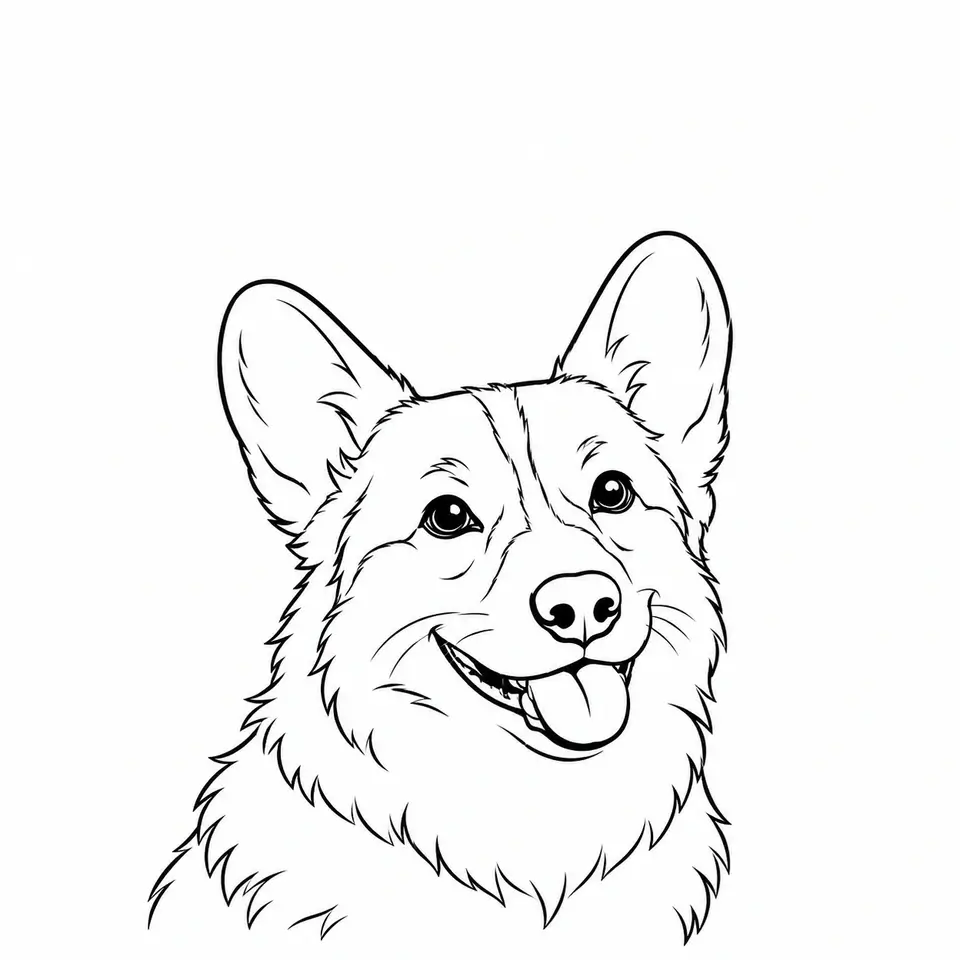
Pet photo to tattoo reference
Turn a favourite pet photo into a simple portrait to discuss with a tattoo artist.
Photo to line art Fine · Clean outline
Choose your own photo after applying these settings.
View the example description
The corgi head and upper chest only. Keep the upright ears and smiling expression, simplify the fur, and remove the background.
Tattoo reference: have a professional refine the lines, size and placement.
Two cosmos flowers, a small bud and slender leaves; a fine, detailed botanical sprig with room around it.
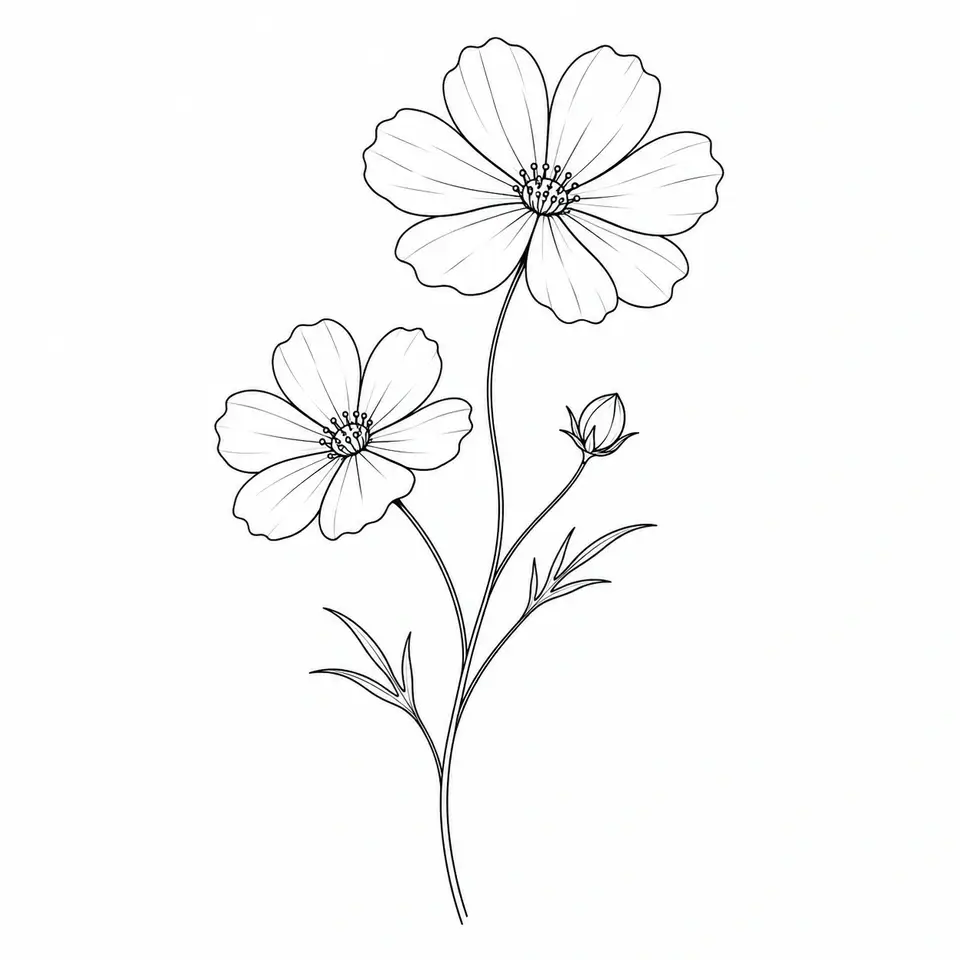
Floral drawings for stationery
Describe a floral idea for stationery or a journal spread without first finding or drawing a reference image.
Text to line art Fine · Detailed lines
The description and style will be filled in. Generate when you’re ready.
View the example description
A delicate botanical sprig with two cosmos flowers, one small bud, slender stems and three narrow leaves. A balanced vertical motif with generous white space, separated petals and fine interior contour detail, intended as a floral illustration draft for a wedding invitation or journal page.
Use the motif as an early reference, then refine it for your project.
A friendly fox beside two mushrooms and a few leaves. Bold outlines, big enclosed shapes and no tiny details.
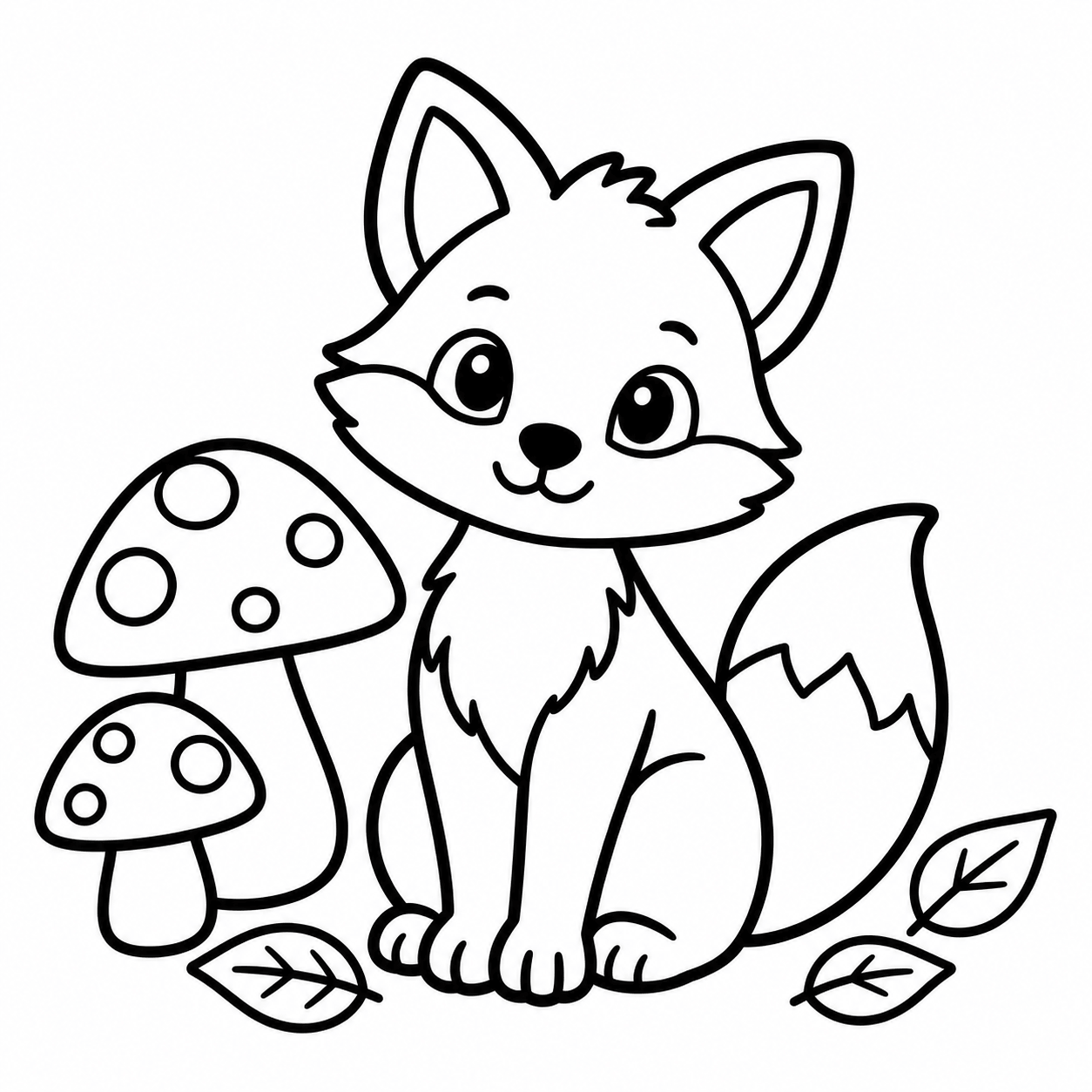
Custom colouring pages for children
Describe a subject a child enjoys and create a simple page with open areas to colour.
Text to line art Bold · Coloring page
The description and style will be filled in. Generate when you’re ready.
View the example description
A friendly young fox sitting beside two large mushrooms and three simple leaves. Big clear enclosed shapes and open areas, easy for a young child to color. One simple scene centered with wide margins.
Choose a simple subject and check the lines before printing.
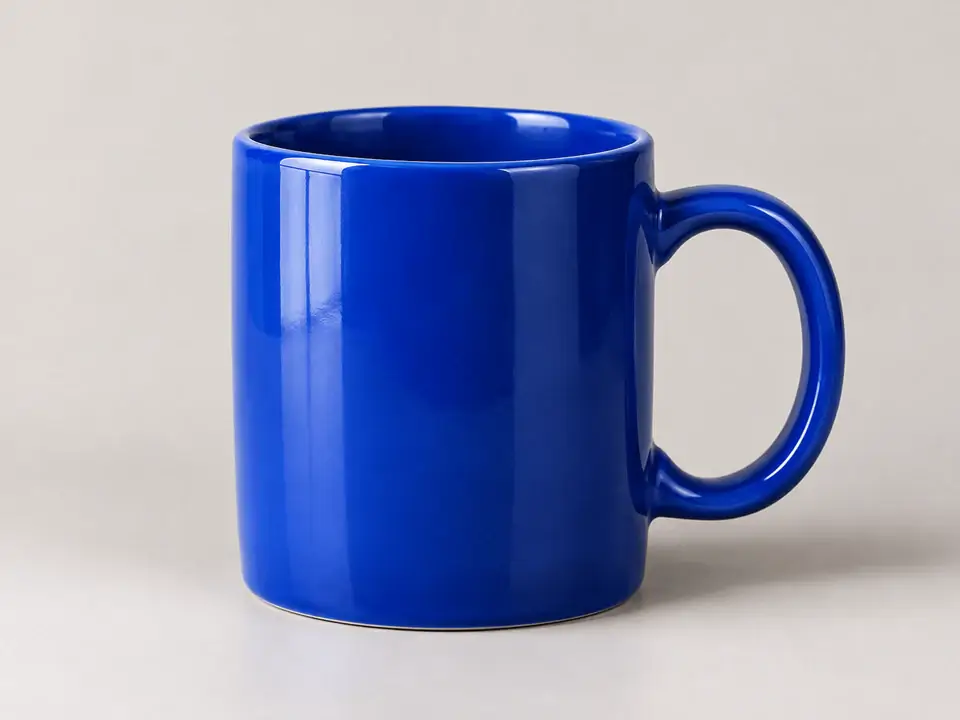
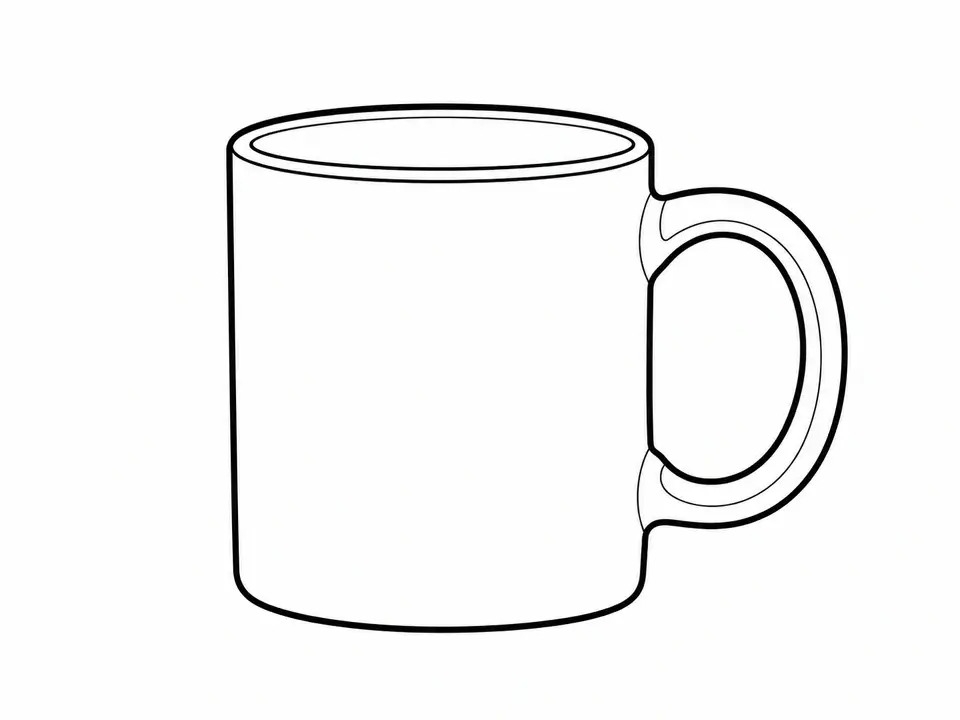
Product photo to label illustration
Simplify a familiar object into an outline to explore on packaging, menus or a brand moodboard.
Photo to line art Medium · Clean outline
Choose your own photo after applying these settings.
View the example description
The ceramic coffee mug only, including its handle. Keep its recognizable shape and simplify the shadows and surface into clean contours. A simple illustration draft for a cafe packaging label, not a finished logo.
Illustration draft: refine the artwork and check rights before commercial use.
Illustrative examples for style reference. Results vary with your image, description and model.
How to choose line style and weight
Choose the line art generator settings for your next project: photo or text input, style and line weight.
Photo or text Choose what your drawing starts from.
- What you get
- Photo mode uses your image as a visual reference; text mode creates a new square composition.
- When to choose it
- Use a photo when the subject and pose matter. Use text to explore an idea without a reference image.
Clean outline Simplify the subject into its main shapes.
- What you get
- A recognisable outline with fewer small details and a simple background.
- When to choose it
- A useful starting point for pet references, everyday objects and illustration drafts.
Detailed lines Keep more of the subject’s interior shapes.
- What you get
- More petal, leaf and object details within the outline.
- When to choose it
- Choose it for botanical motifs and illustrations; very small output sizes can make detail harder to read.
Coloring page Leave clear space for someone to colour.
- What you get
- A drawing guided towards clear shapes and reduced tiny detail.
- When to choose it
- Use it for a simple activity. Check for gaps and unsuitable detail before printing.
Fine, medium or bold Set the visual character of the lines.
- What you get
- Fine lines feel delicate, medium lines are balanced and bold lines are easier to see.
- When to choose it
- Try fine for stationery, medium for a general outline and bold for simple colouring. Exact stroke widths are not guaranteed.
Each choice creates one raster image for PNG download. Line weight and closed contours are guidance; review the result before using it.
Tips for cleaner lines
Give the line art generator one clear subject and a simple background to work from.
-
Start with a clear subject
Use a sharp, high-contrast photo with one main subject.
-
Choose the right line style
Try clean outline for a simple silhouette, or detailed lines for interior shapes.
-
Keep your prompt focused
Ask for black-and-white line art and a simple background in your text prompt.
Before you generate
Know how your images are handled and what to expect from the result.
Image privacy and usage rights
Upload only photos you own or have permission to use.
- How generation works
- Your photo or description is sent to our image-generation provider to create the result.
- Private account files
- Source and output images are held as private account assets.
- Delete your images
- Use Delete images to remove this workspace’s uploaded and generated assets.
This is not an on-device or zero-retention service.
Read our privacy policyOutput formats and limitations
AI line drawings need a human eye.
- PNG image, not a vector
- Results are raster images, not SVG vectors.
- Review the details
- Complex backgrounds, faces and fine details can change or disappear. Line weight and closed shapes are guidance, not guarantees.
- A starting point for your project
- Tattoo references need a professional’s review; logo drafts do not guarantee trademark or commercial safety.
Line art generator questions
Inputs, results and credits, explained.
What is a line art generator?
A line art generator creates a line drawing from a photo or a text description. This tool produces black lines on a white background.
Can I use the line art generator with my own photo?
Yes. Upload a JPG, PNG or WebP, choose your line weight and style, then generate and download the result. Your account’s image upload limit applies.
Can the line art generator work without a photo?
Yes. Switch to Describe with text and enter a subject of up to 1,500 characters. No reference photo is required.
How many credits does it cost?
5 credits · approx. US$0.50. USD estimate uses the 50-credit pack, not your subscription rate. Each generation creates one 1K image. Known failures release reserved credits. If the result is uncertain, the original request stays under review without starting another charge.
What can I download?
Download the result as a PNG. Photo mode follows the source composition; text mode creates a square image. There is no SVG or editable vector export.
Is it ready for tattoos or logos?
Use it as a draft. Ask a professional to refine the drawing and check ownership, trademark and commercial-use rights before using it.