
How the image color changer works
This AI color changer turns your reference photo into a downloadable edit in three steps.
-
Upload a photo
Use a clear image with an easy-to-identify object.
-
Name the change
Describe the object or area, then type a color or pick a swatch.
-
Review and download
Compare the result with your original and download the edited image.
Image color changer examples
Change the color of products, clothing, accessories, furniture, walls and packaging.

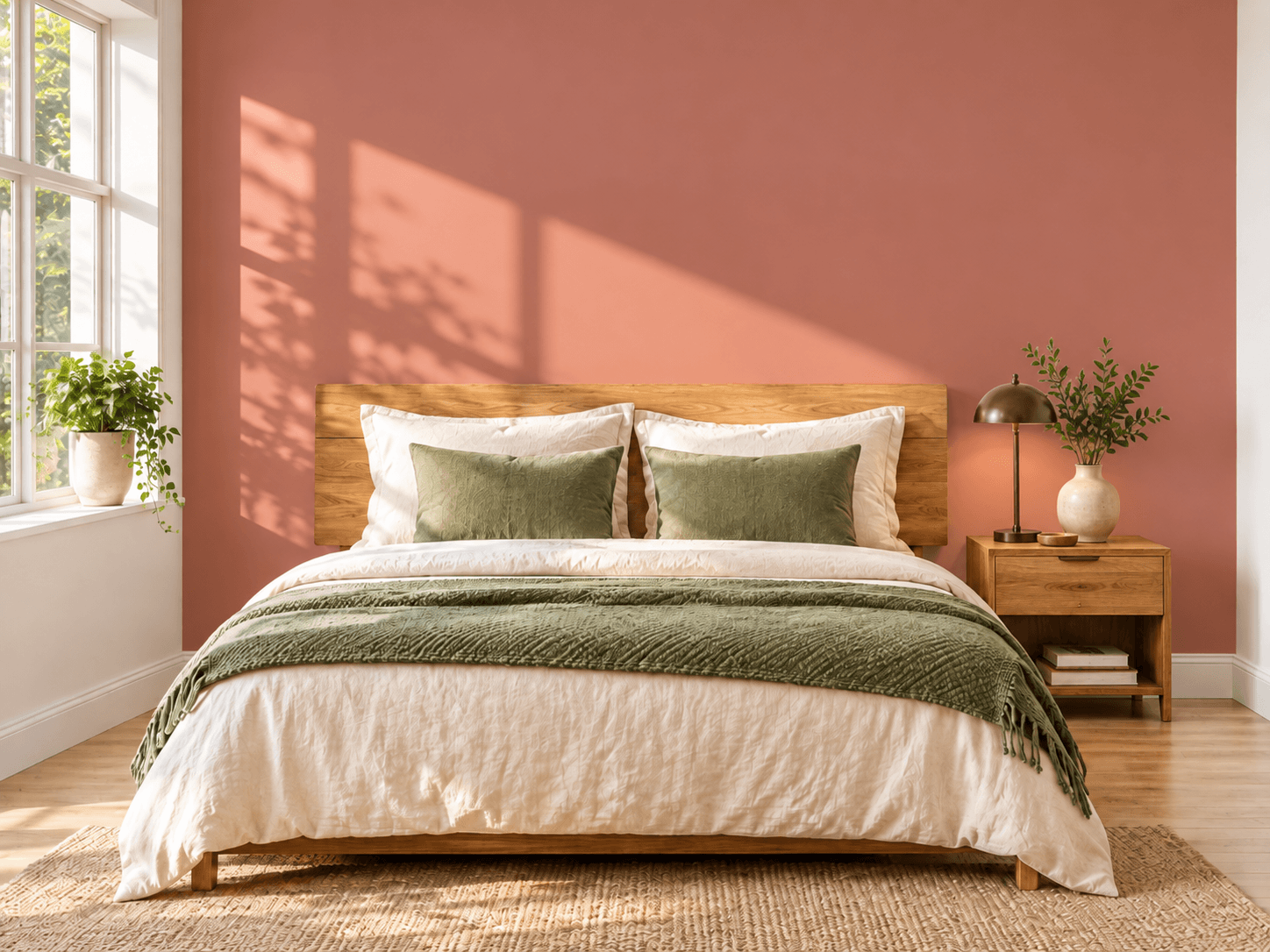
Change wall colors
Choose a wall and a new color to see the recolored room.
Color changeWhite → dusty terracotta rose
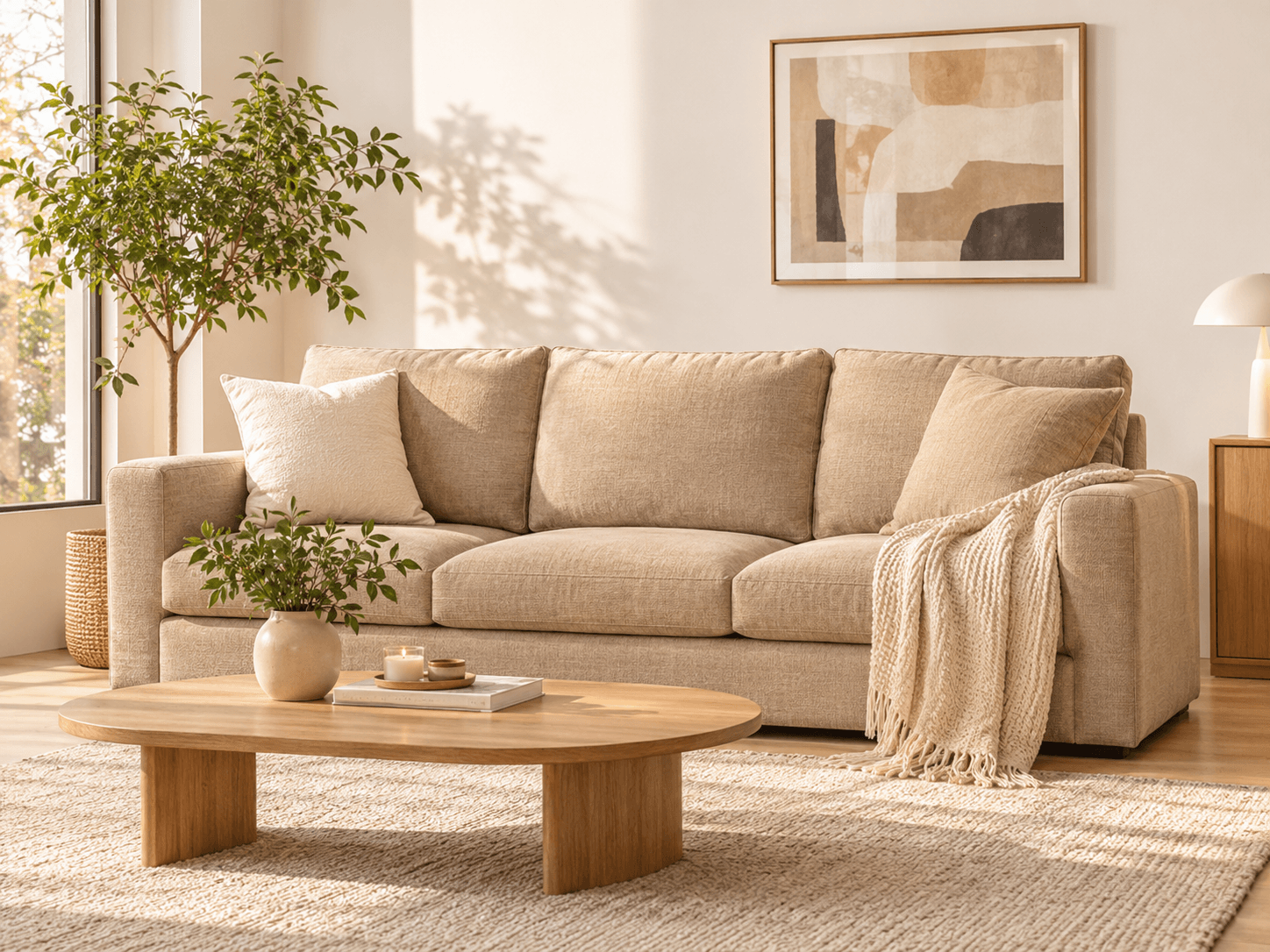
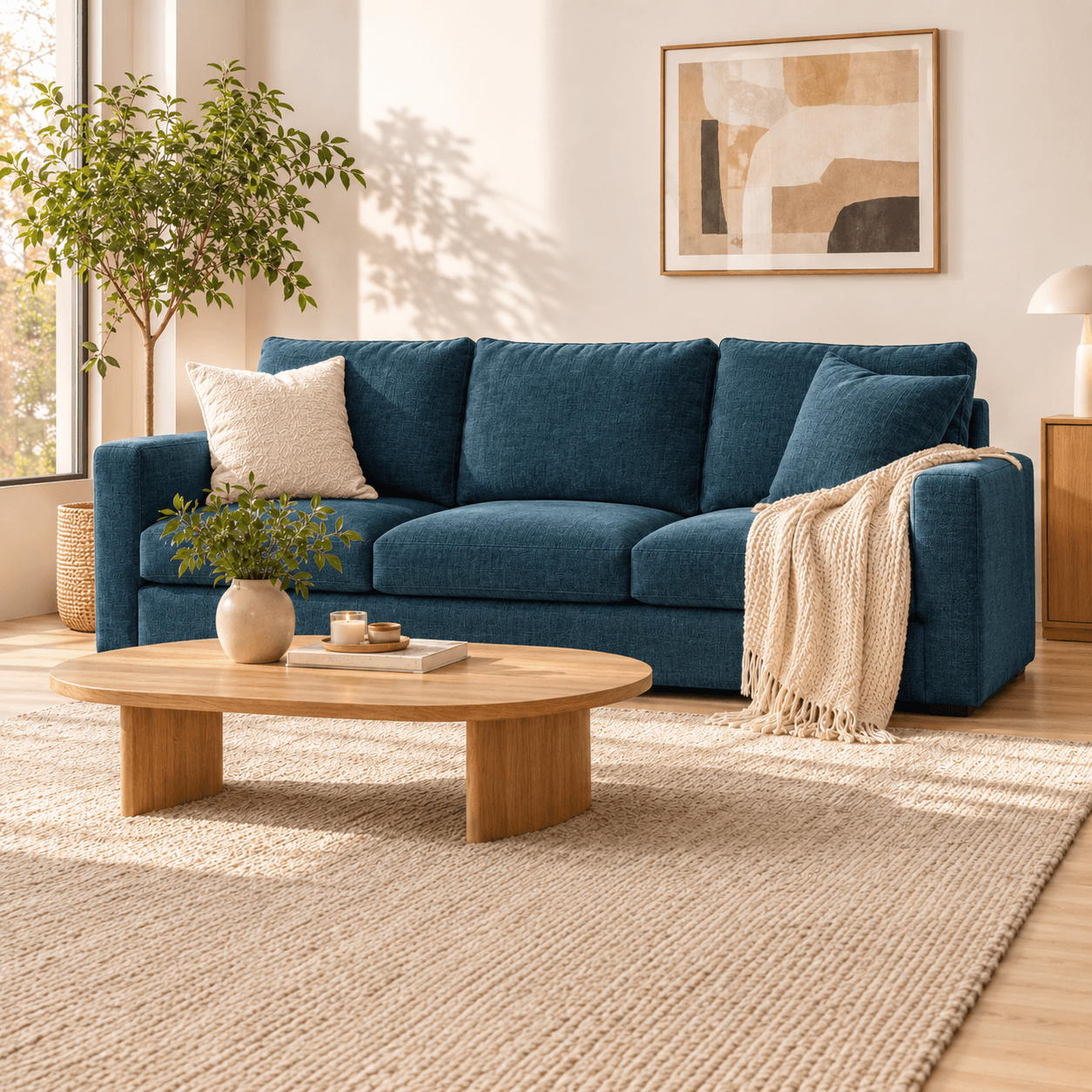
Change furniture colors
Recolor sofa upholstery and cushions while trying to keep the rest of the room unchanged.
Color changeWarm beige → petrol blue
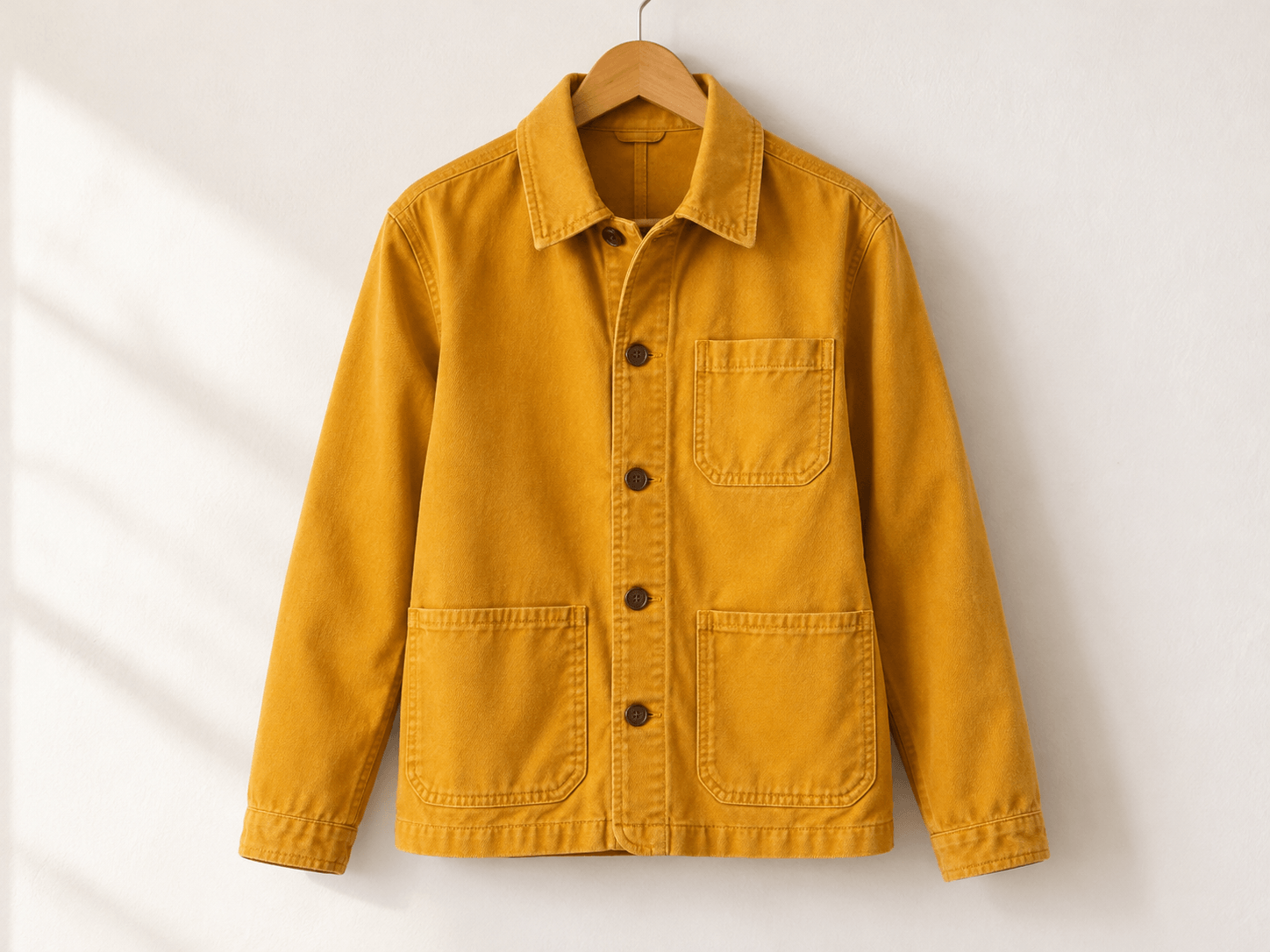
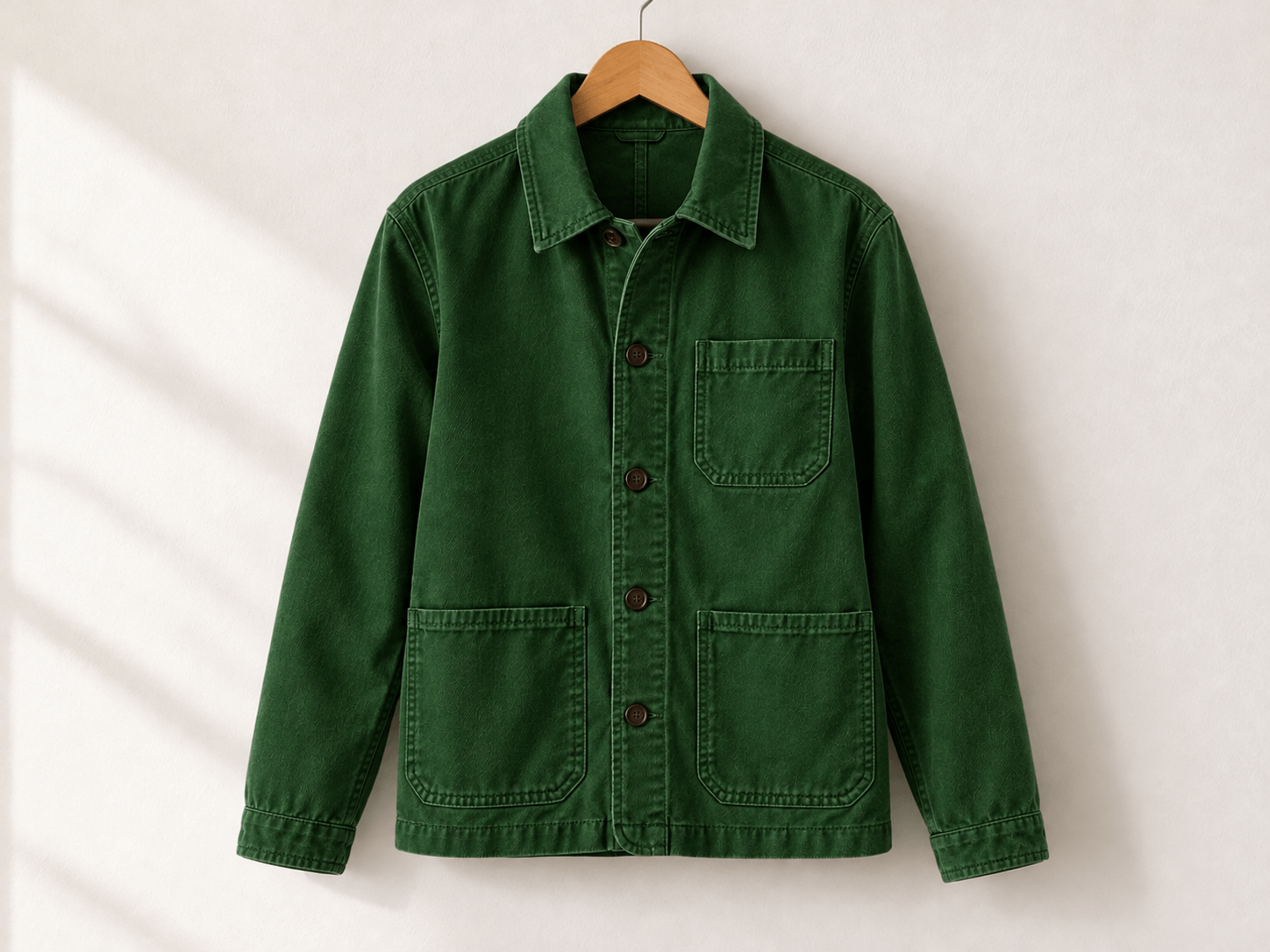
Change clothing colors
Recolor jackets, shirts and other garments while trying to preserve fabric texture and folds.
Color changeMustard yellow → forest green
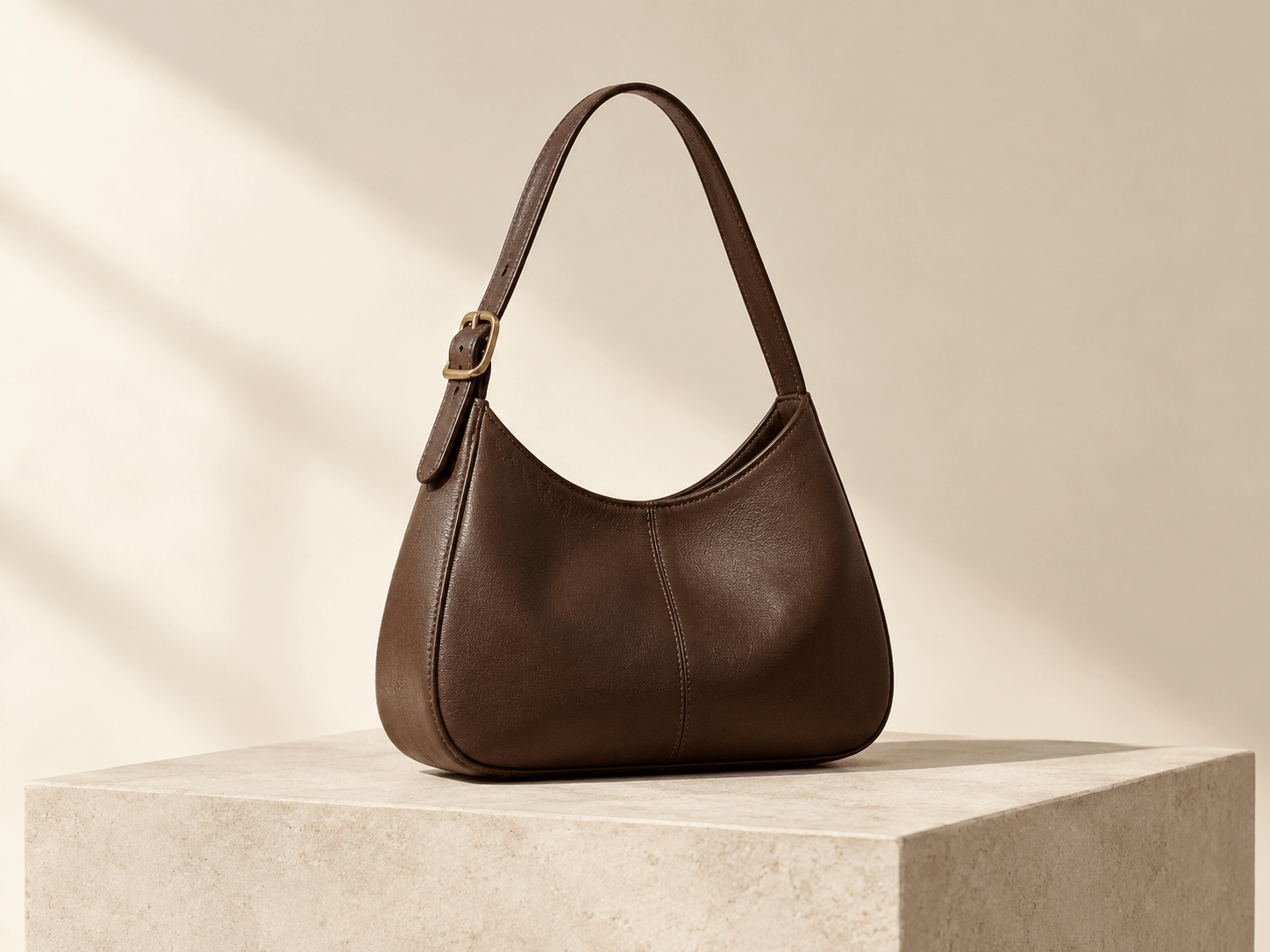
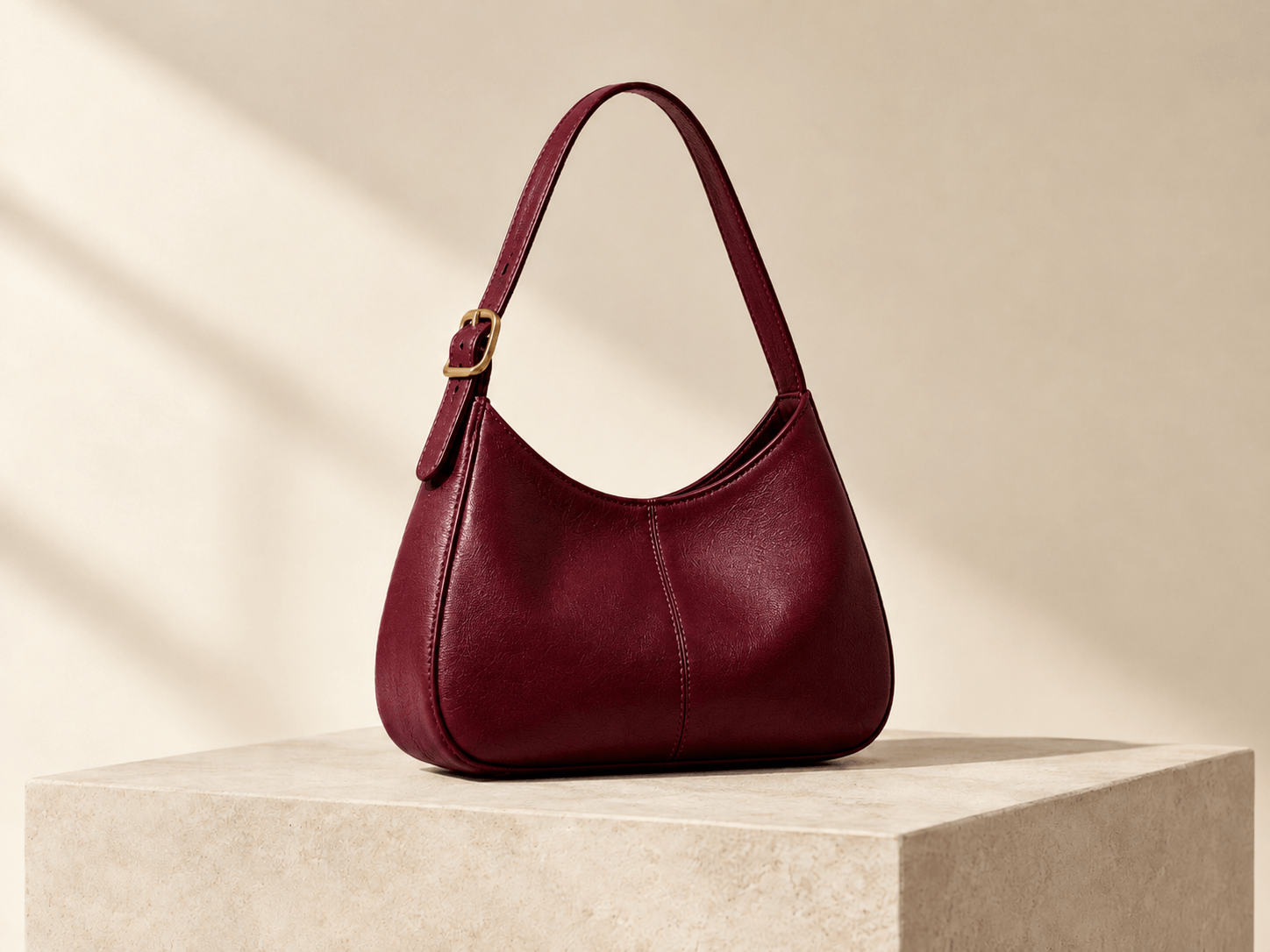
Change accessory colors
Recolor accessories such as handbags. Specify the bag body, strap or another part to change.
Color changeEspresso brown → wine burgundy
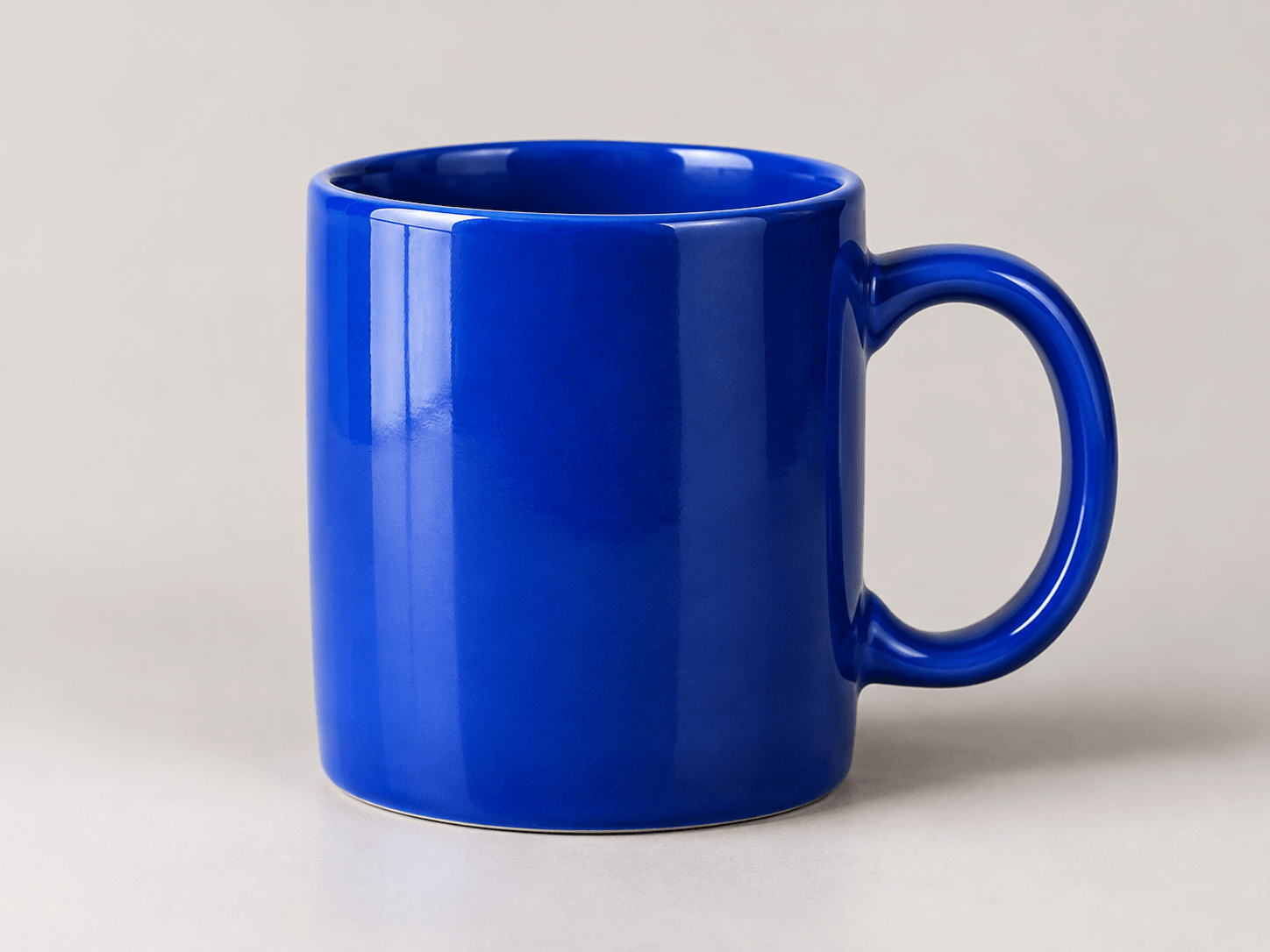
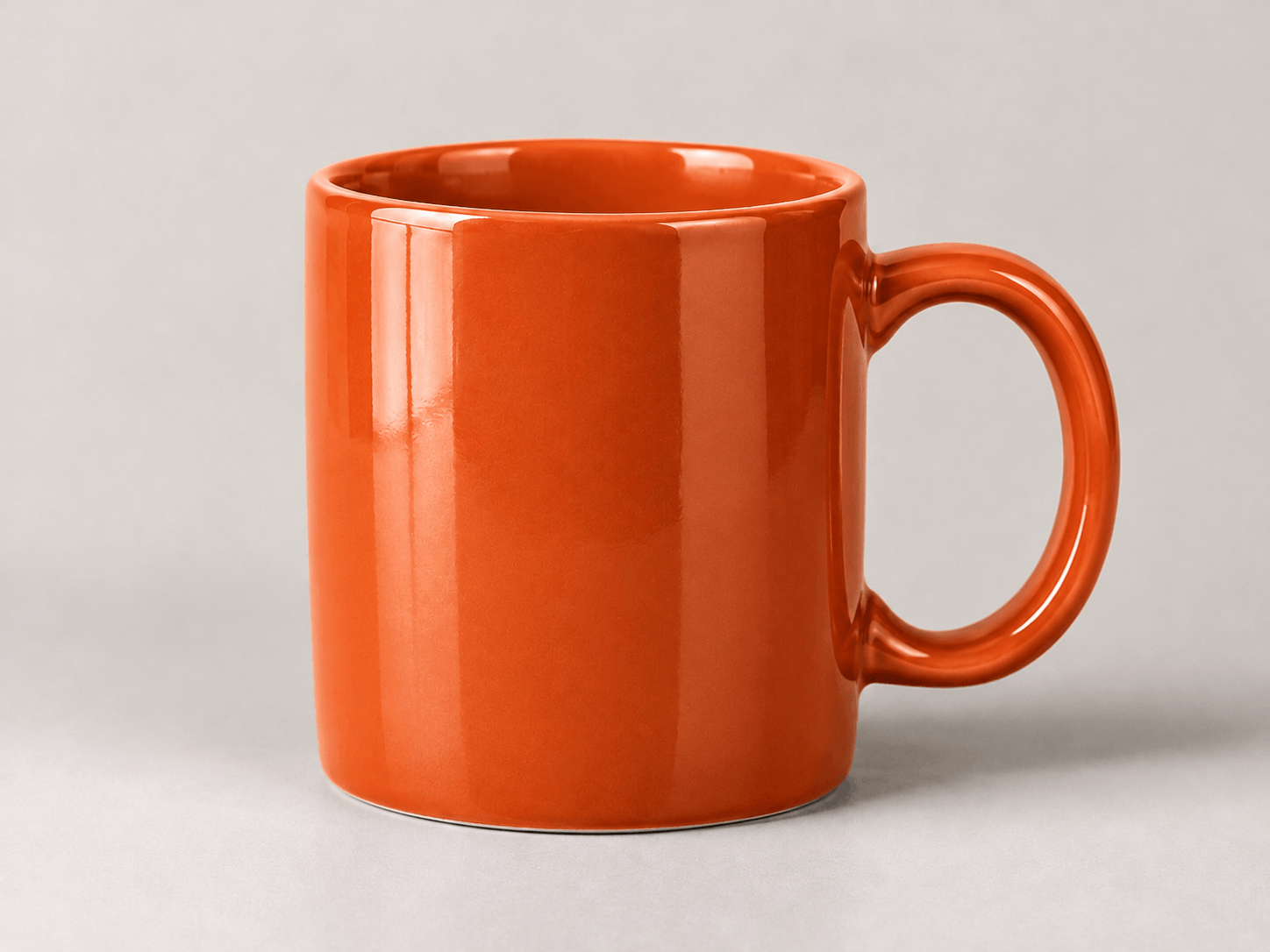
Change product colors
Select a product and a new color to generate a recolored product image.
Color changeCobalt blue → terracotta orange
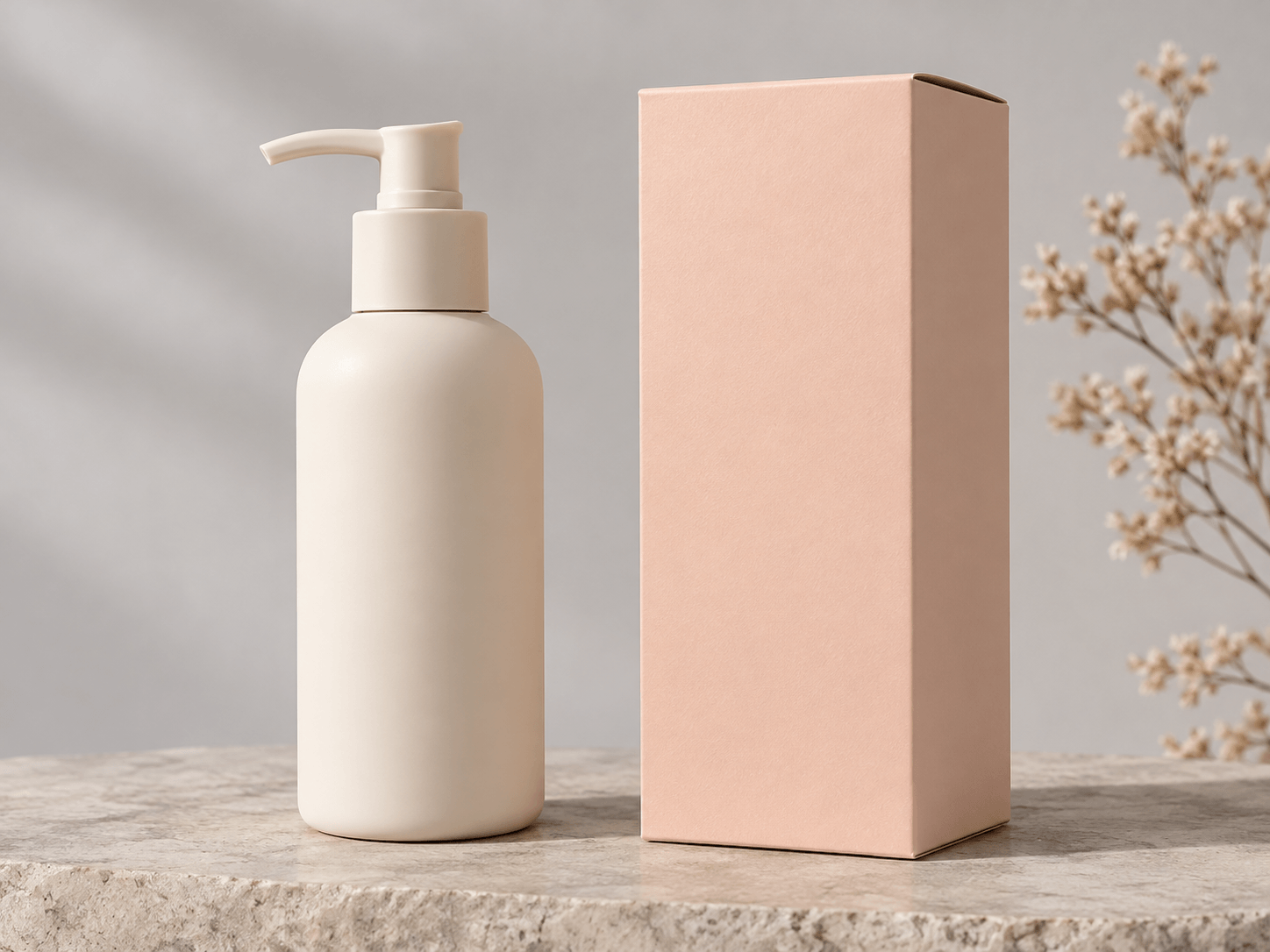
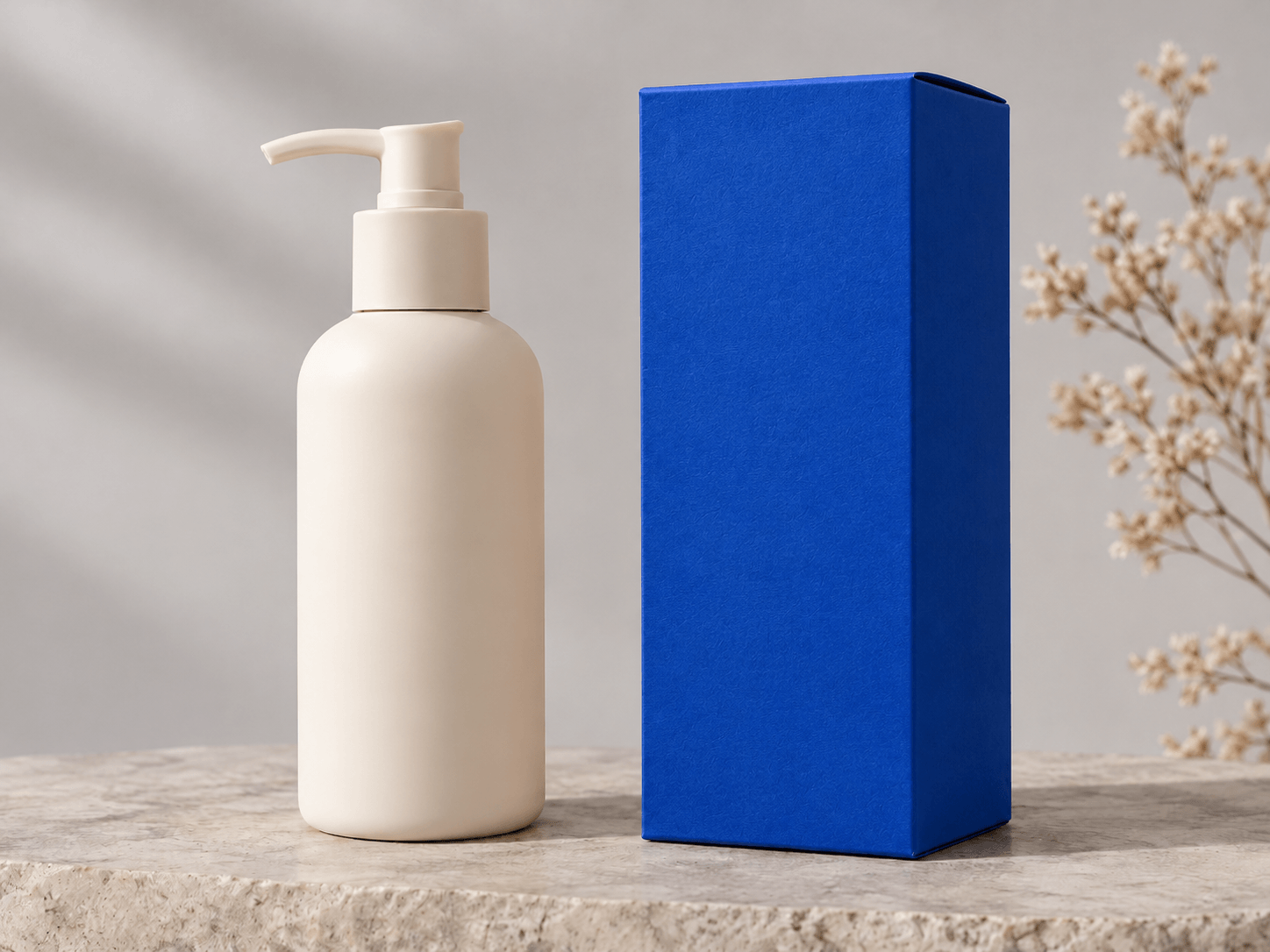
Change packaging colors
Recolor a packaging box while trying to preserve the product beside it, the background and the lighting.
Color changePale peach → cobalt blue
Who is it for?
For product photos, fashion images, interiors and brand visuals.
Online sellers
Change the colors of products in your photos.
Fashion creators
Recolor clothing and compare different shades.
Interior designers & homeowners
Change furniture and wall colors in a room photo.
Brand & content designers
Recolor packaging and objects in promotional images.
Tips for cleaner recolors
Give the image color changer a clear object and target color.
- Name the object, its position and what should stay unchanged: “the jacket on the left; keep the buttons unchanged.”
- Change one object at a time. Similar colors on nearby objects can make the target ambiguous.
- Use a well-lit photo. Transparent materials, reflections, intricate logos and gradients can change unexpectedly.
A color study, with room to check
AI edits can change more than the intended area.
Exact color matching, unchanged skin tones, text and logos are not guaranteed. Shadows and textures are preserved where the model allows. Review every result before publishing or using it as a product representation.
Your images and your rights
Upload only images you own or have permission to edit.
Your input is kept in private account storage and sent to Kie to process the edit. Results are saved privately for preview and download. Use Delete image in the upload area to remove this workspace’s uploaded images and results from your account. Provider retention follows Kie’s policy.
Privacy policyImage color changer questions
What to expect before your first edit.
What is an image color changer?
An image color changer uses AI to recolor a chosen object or area in a photo while trying to preserve the rest of the image.
Is this the same as a photo colorizer?
No. A photo colorizer adds color to black-and-white images. This tool changes colors in an already-colored image.
How do I change one object’s color?
Upload an image, identify the object or region and choose a target color. For example: “the jacket fabric” and “forest green”. Then generate, compare and download.
How many credits does an edit cost?
5 credits · approx. US$0.50 / image The Change color button shows the required credits. Guests can use their trial credits without signing in. If your balance is too low, choose a plan or sign in to claim welcome credits if eligible. A confirmed model failure releases reserved credits. If the outcome is unknown, credits stay reserved while the request is checked; retry the same request rather than starting another.
Which formats does the image color changer support?
JPG, PNG and WEBP. The account upload limit is shown in the tool: normally 2 MB, or 10 MB for accounts with paid web uploads. One image produces one edited image; the output may have different dimensions.
Will the tool keep faces and logos unchanged?
It tries to preserve areas outside the requested edit, but this is not guaranteed. Name only what should change and explicitly ask to keep faces, text or logos unchanged. Inspect the result.
Change color
Use the image color changer to try a new shade on a product, an outfit or a background.